


Table of Contents
Introduction
You’re in the middle of something important — browsing, working, streaming — and out of nowhere your screen shows: “Server Unreachable.”
It’s one of those errors that feels vague and frustrating at the same time. Is it your internet? The website? Your device? Where do you even start?
Here’s the thing: once you understand the server unreachable meaning, troubleshooting becomes a lot less stressful. This guide breaks down exactly what this error means, why it happens, and how to fix it — step by step, no tech jargon required.
What Does Server Unreachable Meaning?
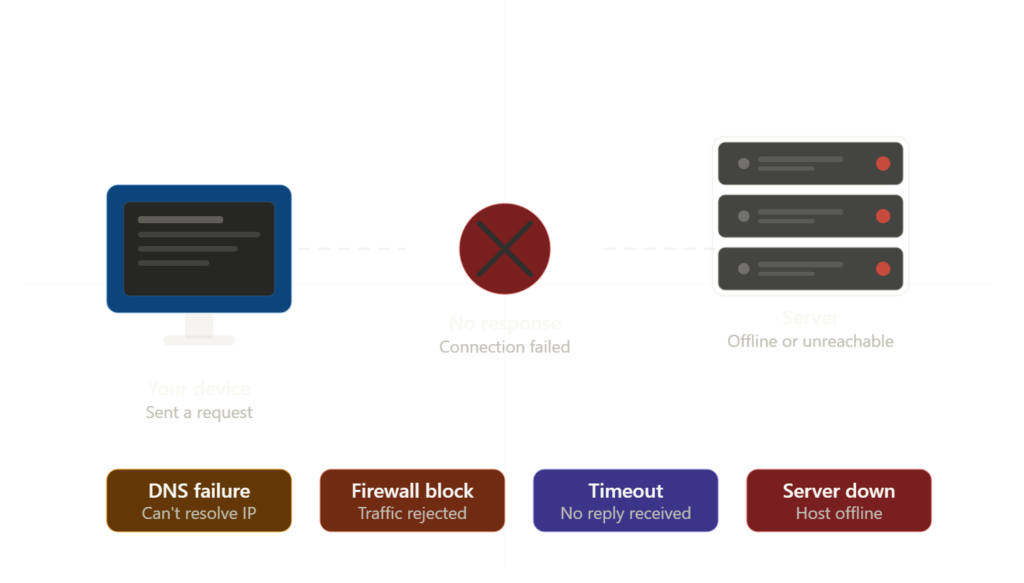
The server unreachable meaning is straightforward: your device tried to connect to a remote server and got no response whatsoever.
Think of it like dialing a phone number that just rings endlessly. You made the call, but nobody answered — and you have no idea if the phone is off, the person is unavailable, or the number doesn’t exist anymore.
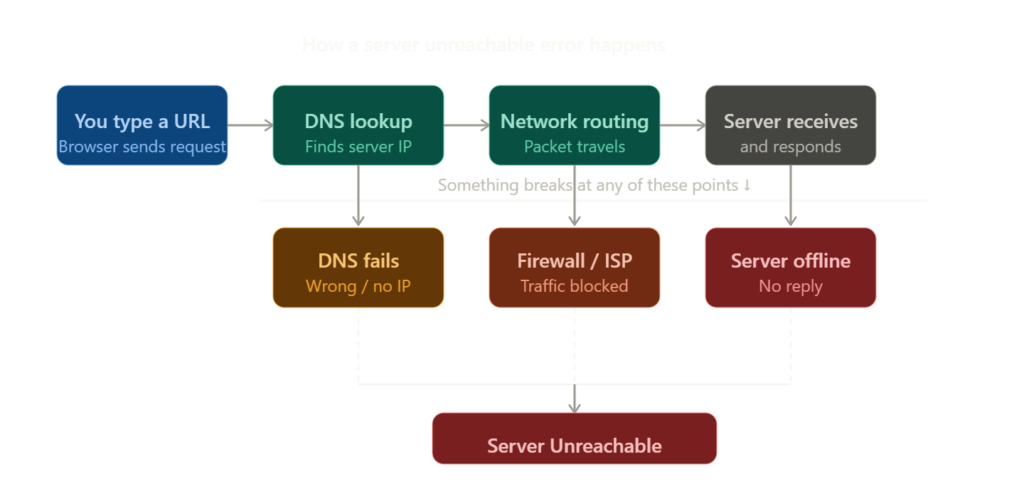
When you open a website or app, here’s what normally happens behind the scenes:
- Your device looks up the server’s address using DNS
- It sends a connection request to that address
- The server receives it and responds
- Data flows back and forth
A “server unreachable” error means that process broke down — usually at step 1, 2, or 3. Your request went out and nothing came back.
This is an important distinction: it’s not the same as a server error (like 500), where the server did respond but something went wrong on its end. Unreachable means there was no communication at all. The line was dead before it even started.
Common Causes of Server Unreachable
Before you start fixing things randomly, it helps to know what actually causes this error. Here are the most common reasons:
DNS Failure — Your device couldn’t translate the website’s domain name into an IP address. Without that translation, it has no idea where to send the request.
No Internet Connection — The most obvious one. If your device isn’t connected to the internet, no server will ever be reachable.
Firewall Blocking the Connection — A firewall on your device, router, or network might be blocking traffic to that specific server or port.
The Server Is Actually Down — Sometimes it really is the server’s fault. It could be offline, crashed, or under maintenance.
ISP Routing Issues — Your Internet Service Provider might be having trouble routing traffic to a specific destination. This is more common than people think.
Request Timeout — The server exists but is overloaded or too slow, and your connection gave up waiting before it could respond.
Wrong Port or IP Address — The app or service is trying to connect to the wrong address entirely. Common in misconfigured software or self-hosted tools.
VPN or Proxy Interference — A VPN or proxy reroutes your traffic. If that middleman is struggling, your connection never reaches the destination.
Server Unreachable vs. Other Common Errors
It’s worth knowing how “server unreachable” compares to other errors you might encounter, so you don’t waste time applying the wrong fix:
Server Unreachable — No connection established at all. The problem could be on your end, the network, or the server.
500 Internal Server Error — The server was reached and responded, but something crashed on its end. Not your problem to fix.
404 Not Found — The server is perfectly reachable, but the specific page or resource you’re looking for doesn’t exist.
503 Service Unavailable — The server is up but temporarily overwhelmed. Usually resolves on its own.
DNS_PROBE_FINISHED_NXDOMAIN — A DNS-specific error meaning the domain couldn’t be resolved to an IP address at all.
Connection Refused — The server is active but actively rejected your connection, usually because the port is closed or the service isn’t running.
The key difference with “server unreachable” is that there’s zero communication. Everything else implies at least some connection was made.
How to Fix Server Unreachable — Step by Step
Work through these fixes in order. Start simple, then go deeper. Most people resolve the issue within the first few steps.
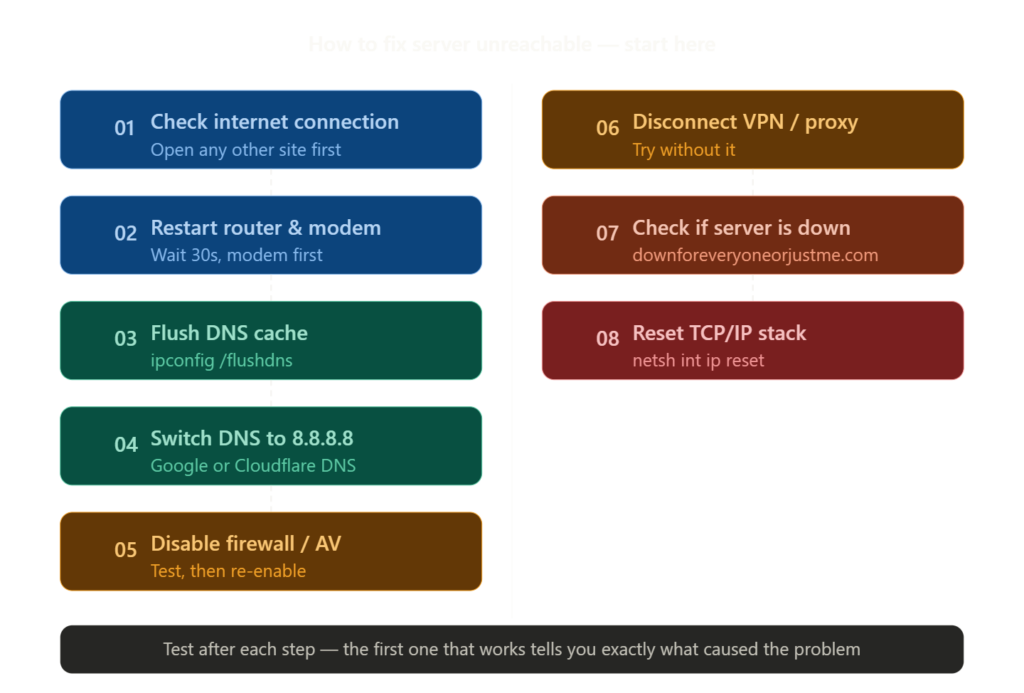
Step 1: Check Your Own Internet Connection
Before assuming the server is broken, confirm your own connection works. Open a different website or run a quick ping. If nothing else loads either, the problem is your internet — not the server you’re trying to reach.
Step 2: Restart Your Router and Modem
Unplug both devices. Wait 30 seconds. Plug the modem in first, then the router. This clears cached routing tables, renews your IP, and resets your connection to your ISP. It fixes more problems than it should, but it works.
Step 3: Flush Your DNS Cache
Your device stores DNS records to load sites faster. But if those records are outdated or corrupted, they point you to the wrong (or nonexistent) server. Clear them with these commands:
Windows: ipconfig /flushdns
Mac: sudo dscacheutil -flushcache; sudo killall -HUP mDNSResponder
Linux: sudo systemd-resolve --flush-caches
Step 4: Switch to a Public DNS Server
If your ISP’s DNS is the problem, switching to a more reliable one fixes it instantly. Use Google’s DNS (8.8.8.8 and 8.8.4.4) or Cloudflare’s (1.1.1.1). Change this in your network adapter settings or directly in your router’s admin panel.
Step 5: Disable Your Firewall or Antivirus Temporarily
Security software sometimes blocks legitimate connections, especially after an update. Temporarily disable your firewall and test. If the site loads, add an exception for it rather than leaving the firewall off permanently.
Step 6: Disconnect Your VPN or Proxy
If you’re running a VPN or proxy, disable it and try again. If it works without it, your VPN server is the problem — try switching to a different server location within your VPN app.
Step 7: Check if the Server Is Actually Down
Use a tool like downforeveryoneorjustme.com or isitdownrightnow.com to confirm whether the server is down for everyone or just you. If it’s a global outage, there’s nothing to fix on your end — you just have to wait it out.
Step 8: Reset Your TCP/IP Stack
A corrupted TCP/IP stack can cause persistent connection failures. On Windows, open Command Prompt as Administrator and run:
netsh int ip reset
netsh winsock reset
ipconfig /release
ipconfig /renew
Restart your computer after. This is one of the most effective deep fixes for stubborn unreachable errors.
Advanced Fixes for Developers and Server Admins
If you’re managing a server and users are reporting this error, here’s where to look:
Run a traceroute to see exactly where the connection drops. On Windows use tracert yourdomain.com, on Mac/Linux use traceroute yourdomain.com. If the trace stops at a specific hop, that’s where the breakdown is.
Review your firewall rules on the server side. Make sure inbound traffic is allowed on the correct ports. A common mistake is opening port 443 but missing port 80, or a security update accidentally tightening rules too much.
Check your server logs. If connection attempts are arriving but being rejected, logs will tell you. If there are no log entries at all, the traffic isn’t reaching the server — check upstream routing instead.
Verify the service is actually running. A web server that silently crashed won’t return errors — it’ll just be unreachable. Run sudo systemctl status nginx (or Apache, or whatever you use) to confirm it’s alive.
Check DNS propagation. If you recently changed DNS records, it can take up to 48 hours to propagate fully. Use dnschecker.org to verify your records are resolving correctly across different regions.
How to Prevent Server Unreachable Errors
A few habits that dramatically reduce how often you see this error:
Use a reliable DNS provider like Google or Cloudflare instead of your ISP’s default. They’re faster, more stable, and globally redundant.
Set up uptime monitoring if you manage a server. Tools like UptimeRobot or Betterstack alert you the moment something goes down — often before users even notice.
Use a CDN like Cloudflare to add redundancy. Even if your origin server has issues, the CDN can serve cached content and keep things reachable.
Document your firewall rules. Undocumented changes are one of the top causes of sudden “server unreachable” events in production environments.
Always test connectivity after deployments, even minor ones. A small config change can silently break access, and catching it immediately saves a lot of pain.
Frequently Asked Questions
What is the server unreachable meaning in simple terms? It means your device sent a request to a server and got no reply. The connection never happened — like knocking on a door that nobody answers.
Is this error always my fault? Not at all. It could be your internet, your ISP’s routing, the server itself, a firewall, or a VPN. The first job is figuring out whose side the problem is on.
Why does it happen on my phone but not my laptop? Your phone and laptop likely use different networks — one on mobile data, one on Wi-Fi. The problem is specific to one of those connections or the routing through your carrier.
How long does it take to fix? User-side fixes like flushing DNS or restarting a router take under 5 minutes. If the server itself is down, you’re waiting on the hosting provider — anywhere from minutes to hours depending on the issue.
Can a VPN cause this error? Yes. If the VPN server is overloaded, blocked, or can’t route to the destination, you’ll get unreachable errors. Try switching VPN server locations or disabling it to test.
What does “destination host unreachable” specifically mean? It’s a specific network message (ICMP) meaning your local network or the next router doesn’t know how to route packets to that IP. Usually a routing or network configuration issue rather than the server being down.
Final Thoughts
The server unreachable meaning always comes down to the same core problem: something broke the communication chain between your device and the server.
The fix is rarely complicated once you know where to look. Start with your own connection, work through DNS and firewall settings, check whether the server is actually down, and escalate from there. For developers, combine traceroute with log review and service checks to pinpoint the exact failure point quickly.
Most of the time, you’ll have it sorted in under ten minutes. Follow CloudPages
